
This guide is for customers with an 'Abode Connect' account and Channex channel manager enabled. If you're not sure, please contact support@abodebooking.com
I. Connect to Channex
Note: Please ensure any unused room types in Trip.com have been removed before connecting. If any types connect be removed because of forward bookings, ensure to apply a stop-sell after connection.
To connect your property through a connectivity provider, follow these steps. If the options aren’t available in your account, please contact Trip at lodgingsupport@trip.com
- Log in to Trip.com eBooking
- Go to Rates & Availability and select Connectivity Settings from the drop-down menu.
- Search Channex in the search box and choose Channex
- Click on Continue.
- Click on Connect to confirm and initiate the connection.
- Your connection with the connectivity provider has been activated on the Trip.com side.
After you submit the connection request, you need to make a new channel is Channex and map.
II. Create the Trip.com Channel
- Go to Channex > Channels tab
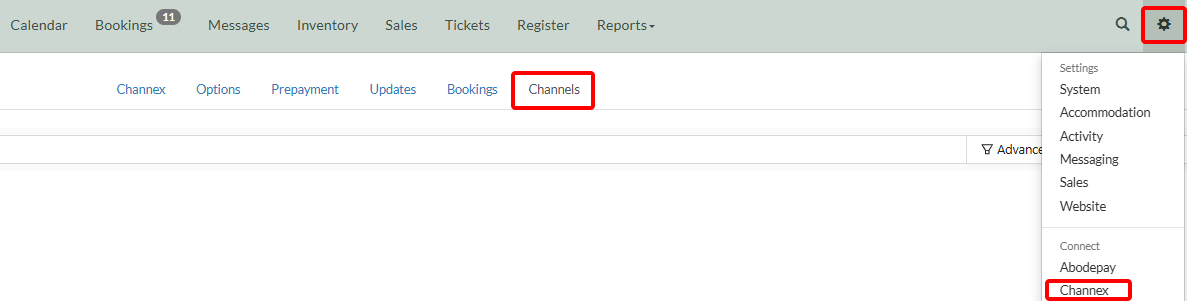
- Click on Create

- Select Trip.com (CTrip) channel and fill in all required information.
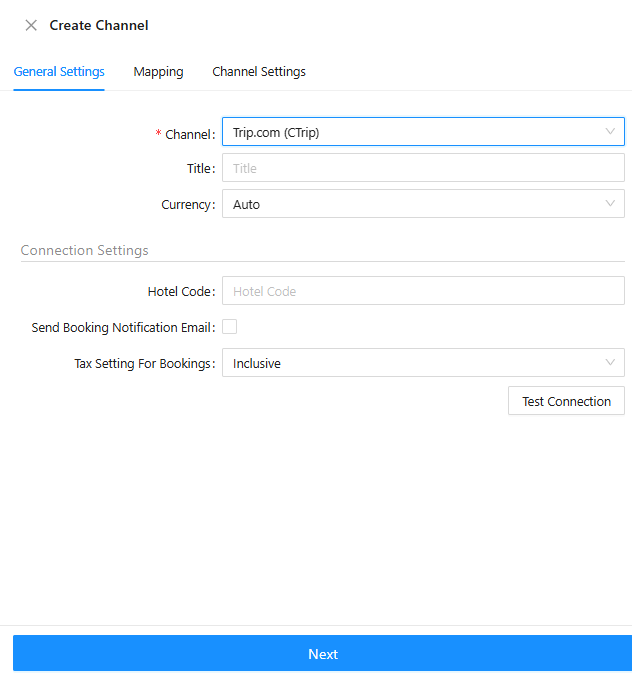
- Title: Enter your admin username in the title field
- Hotel Code: This will be the Trip.com Hotel ID
- Send Booking Notification Email: This is optional if you would like Channex to send an email after a booking (New, Modification and Cancellation)
- Tax Setting For Bookings: Choose here if you want total with taxes or without
- Test Connection: This button will check if we have access to that property in Trip.com, if there is an error please check your property ID. You might need to ask Trip.com support to check if Channex is connected.
III. Mapping
- Click the Mapping tab if the test button is a success, this will bring up mapping table.
- Select to match the types in the Trip.com column with the types in the Channel Manager column and select Save once complete.
- Save the channel.
- Once the channel is saved, select Actions to Activate the channel.
- Check the inventory and rates are correct in your Trip.com channel.