
This article applies only to customers using the AbodePay payment solution. If you are using a different payment provider, some steps or settings described here may not apply to your account.
1. Open the booking and click the invoice edit icon (pencil icon next to the Invoice section) to add a refund adjustment.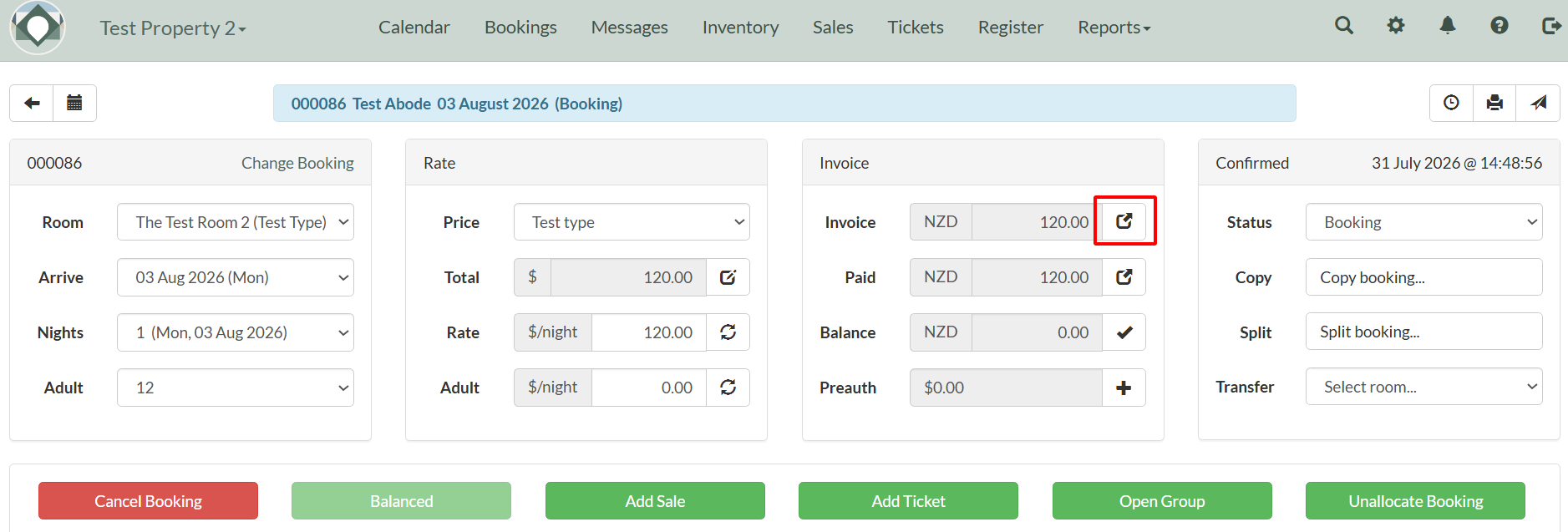
2. Enter the details of the refund and the negative amount. Select the Add Charge button to add to the invoice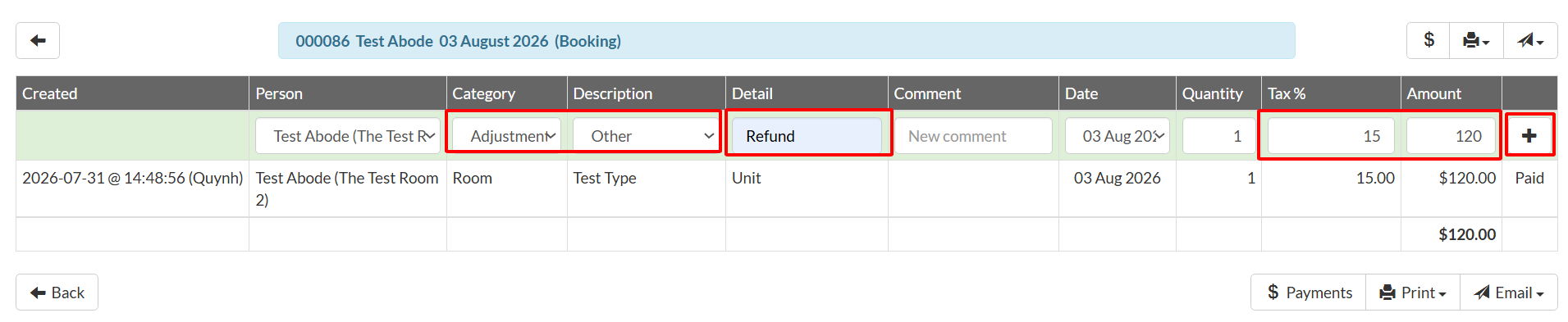
3. The booking screen will now display the new balance and the Refund Owning button. Select to process the invoice.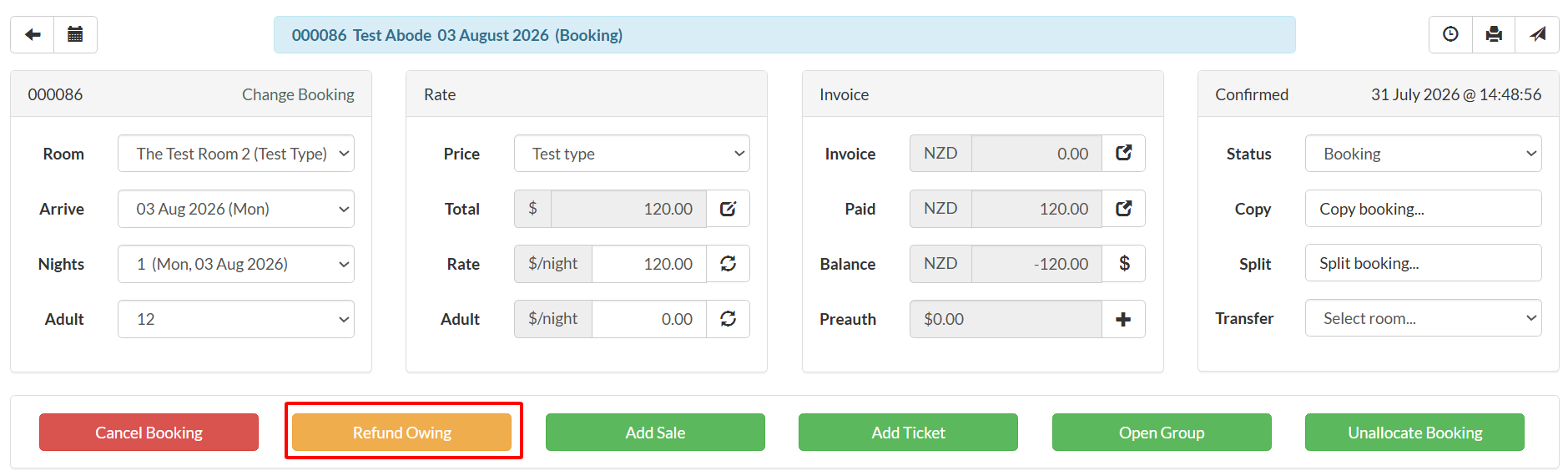
4. Surcharge will be $0.00 for refunds: you will receive your merchant fees back in accordance with your Host Agreement. Click Confirm to process the refund.
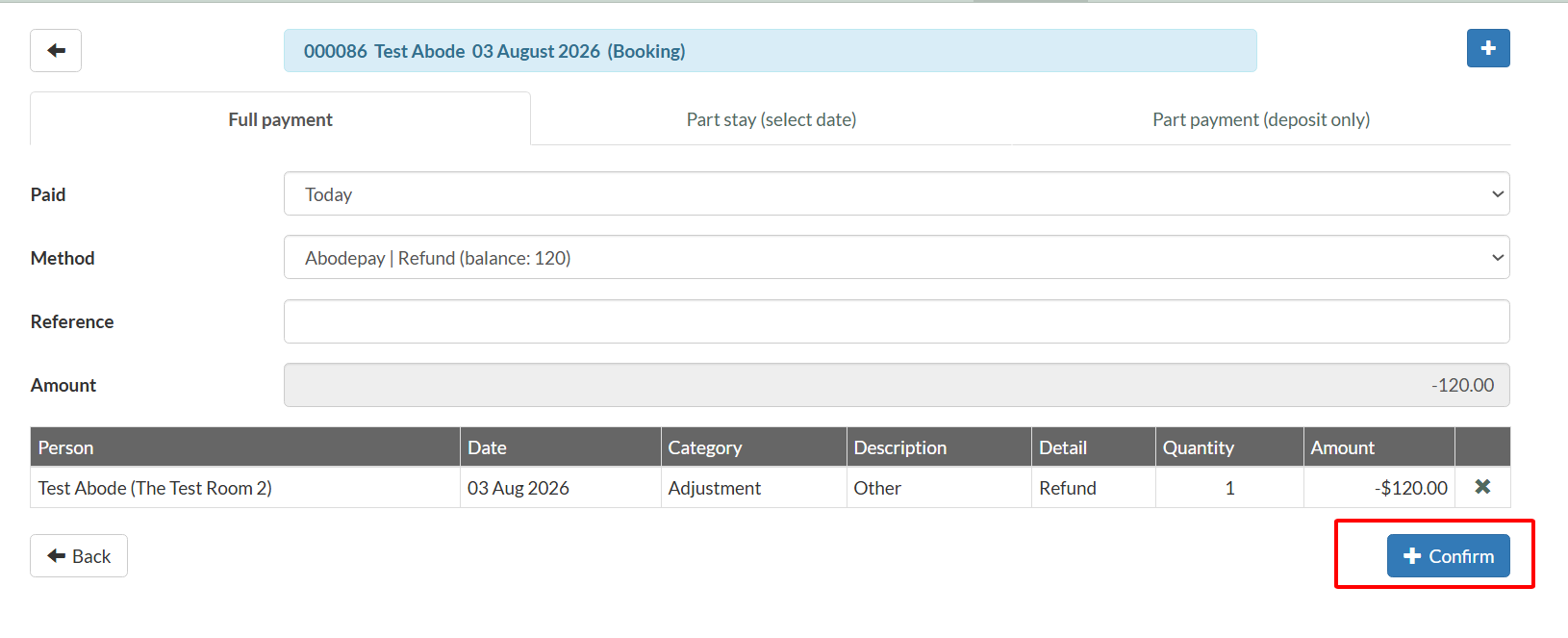
Note: Refunds must always be issued to the same card used for the original transaction. If a booking has multiple saved cards, be sure to select the correct one. Refunding via bank transfer, or to a different person's card, is not permitted.