
This article applies only to customers using the AbodePay payment solution. If you are using a different payment provider, some steps or settings described here may not apply to your account.
1. Go to the Calendar and click on the guest's booking.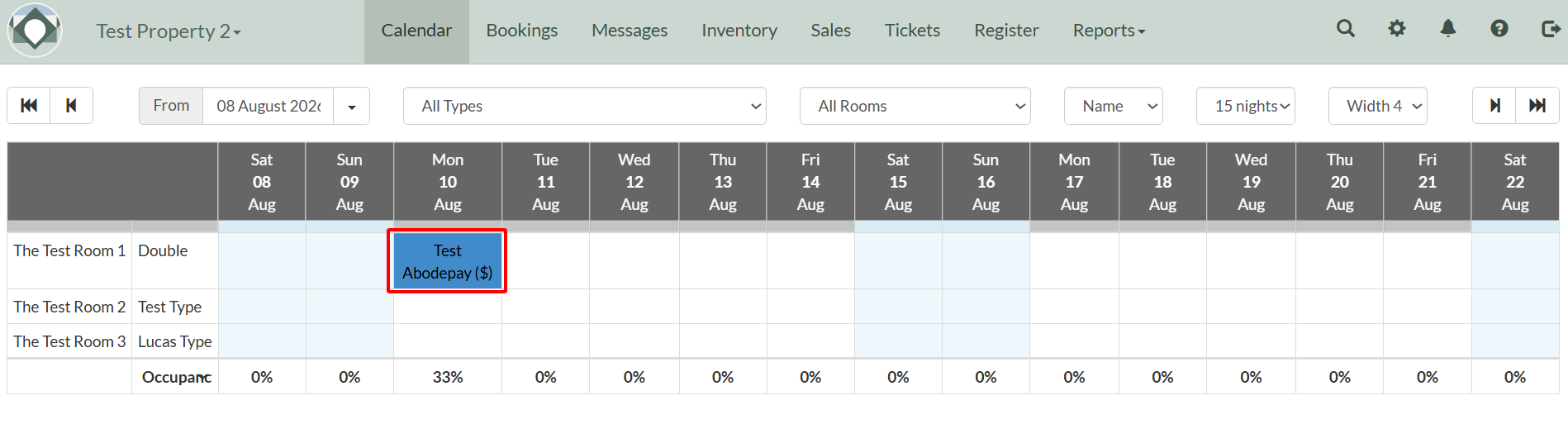
2. The booking page displays the guest's saved card details. You can view them by clicking the Card icon.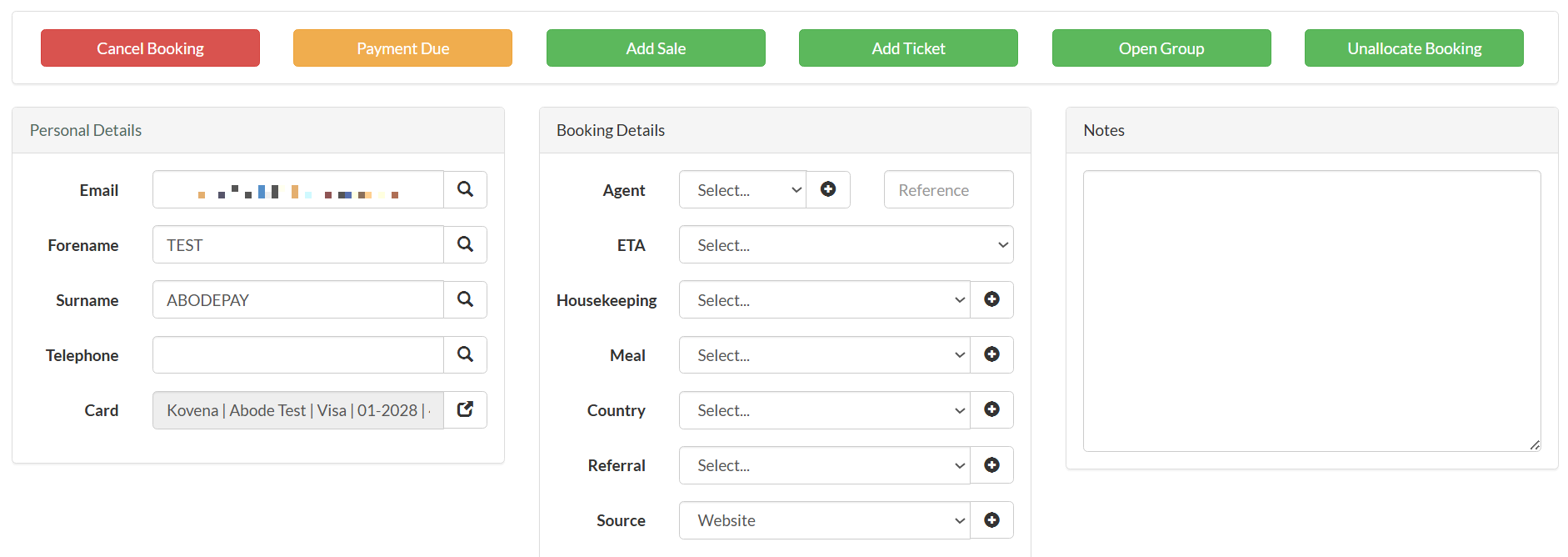
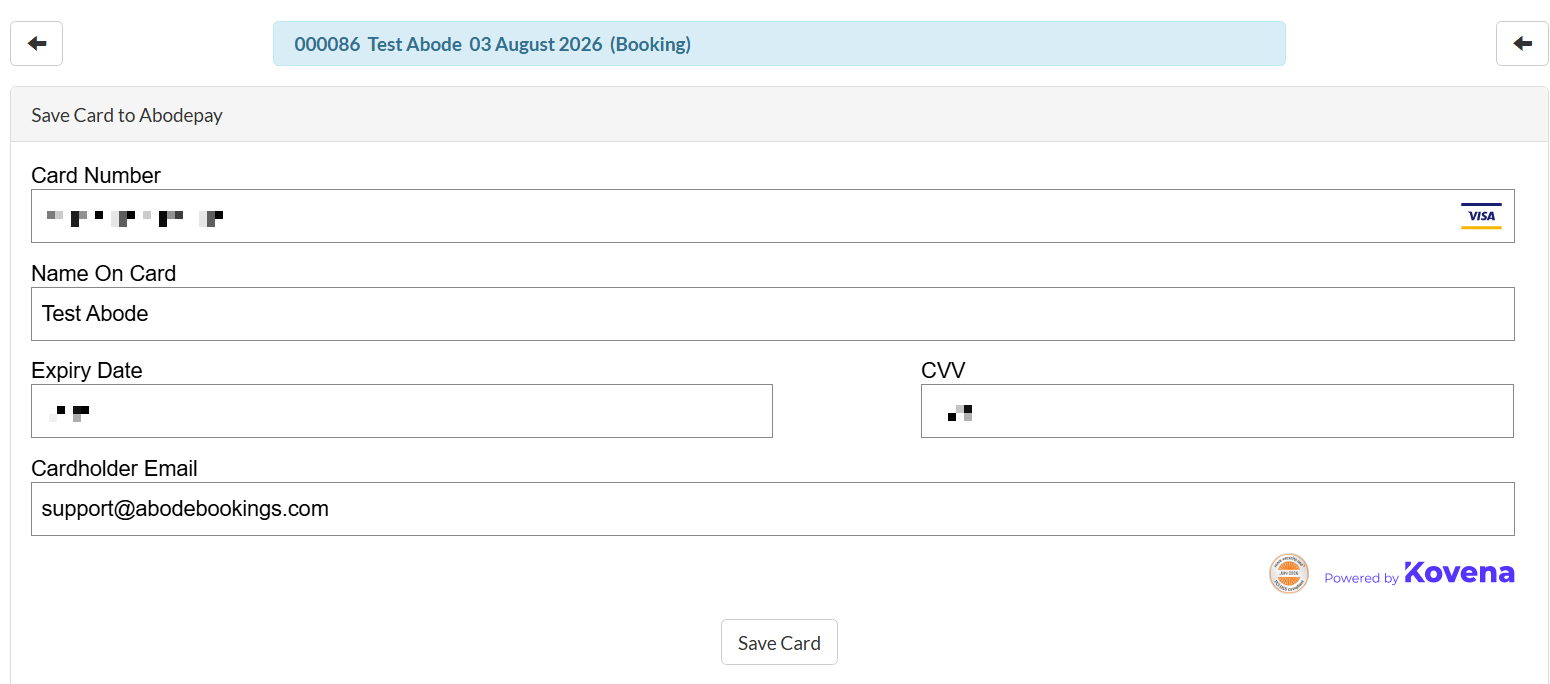
Note: If needed, click the + button to add additional cards.
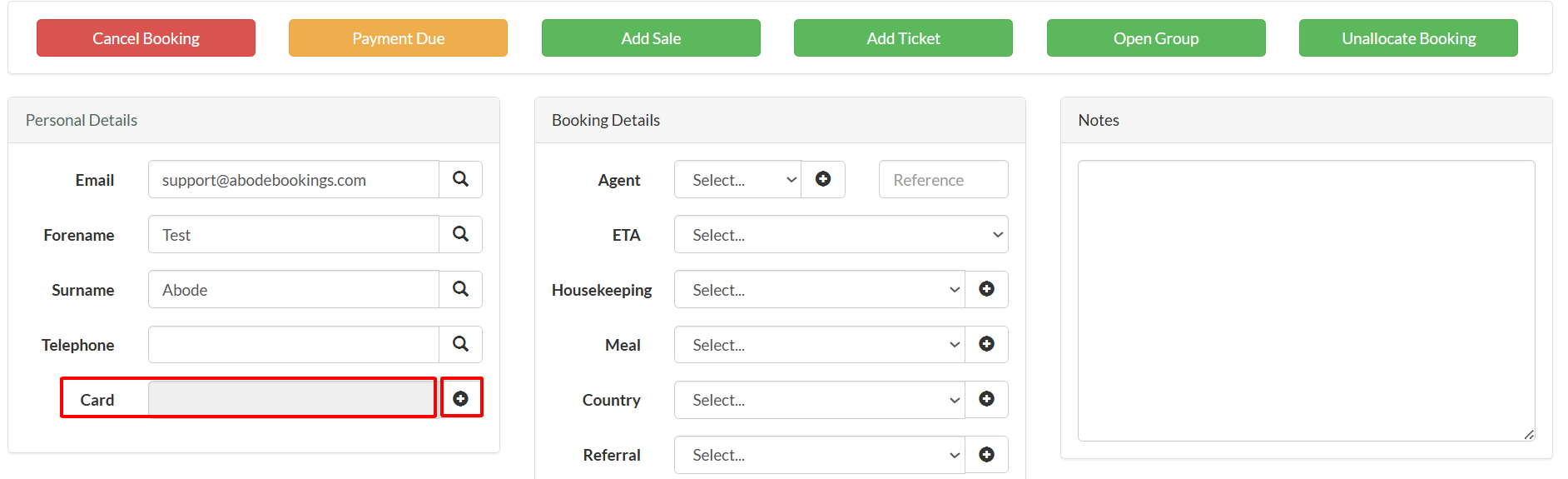
3. Click the Payment Due button (shown in yellow on the booking page).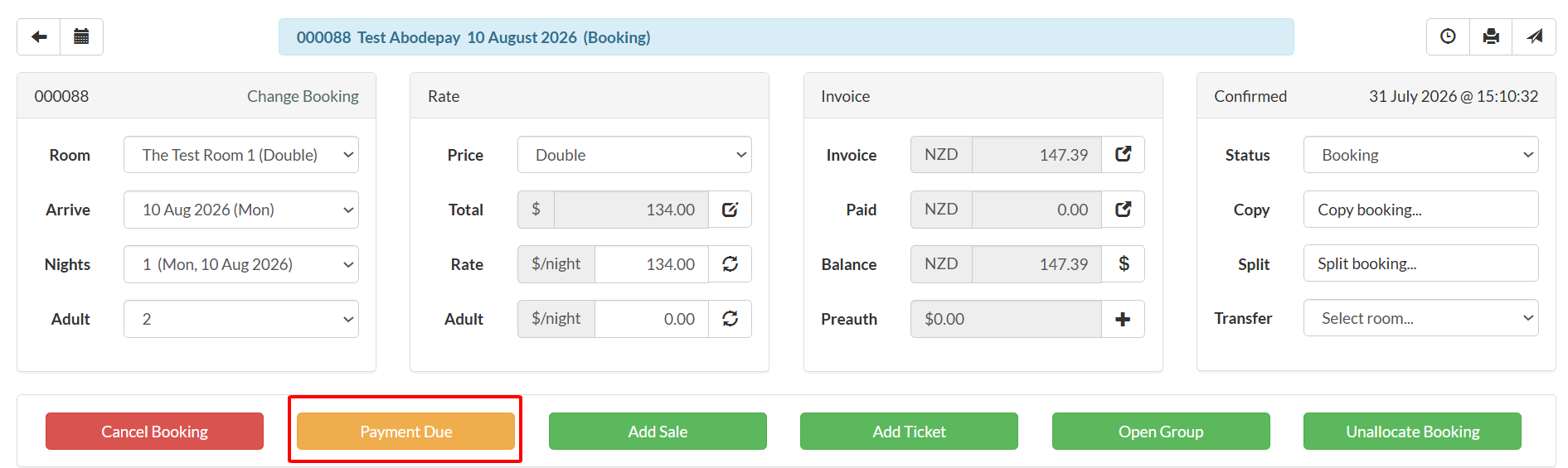
4. Review the Total (amount plus surcharge), then click Confirm.
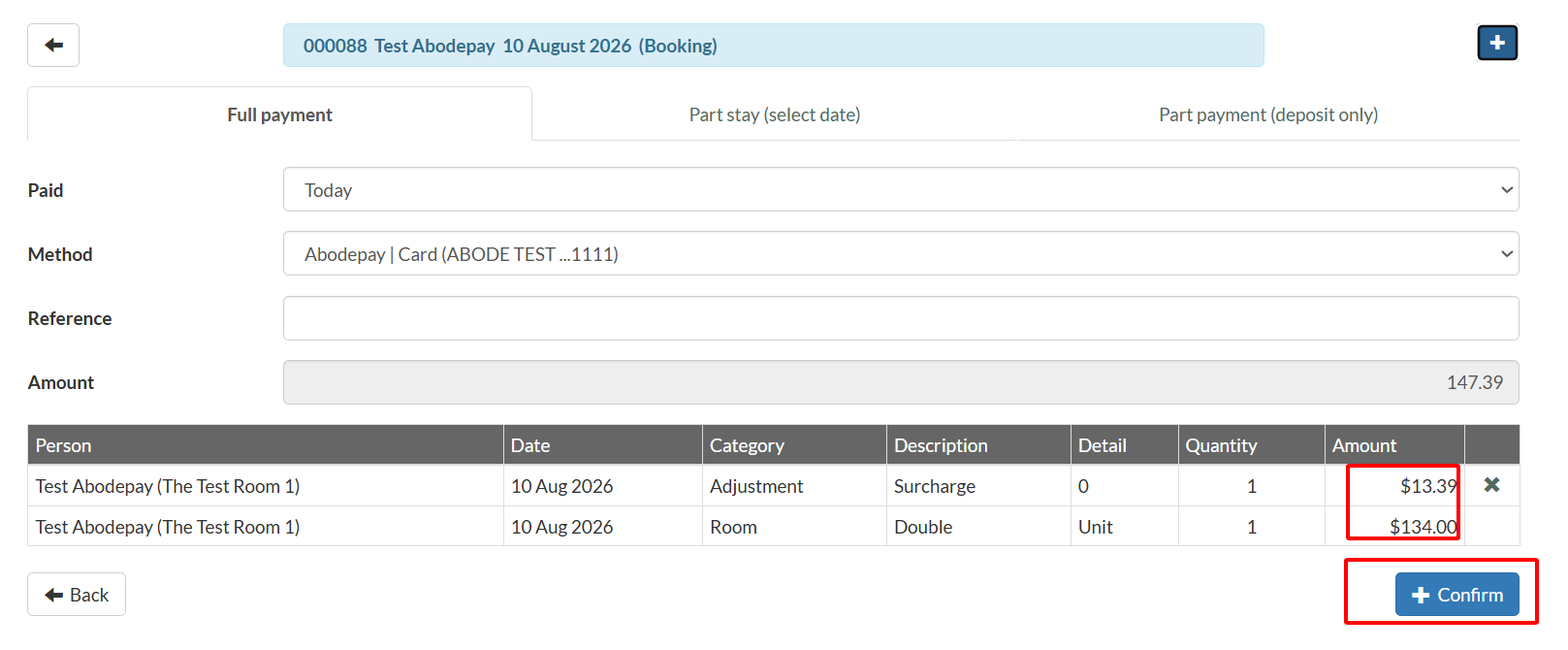
After clicking Confirm:
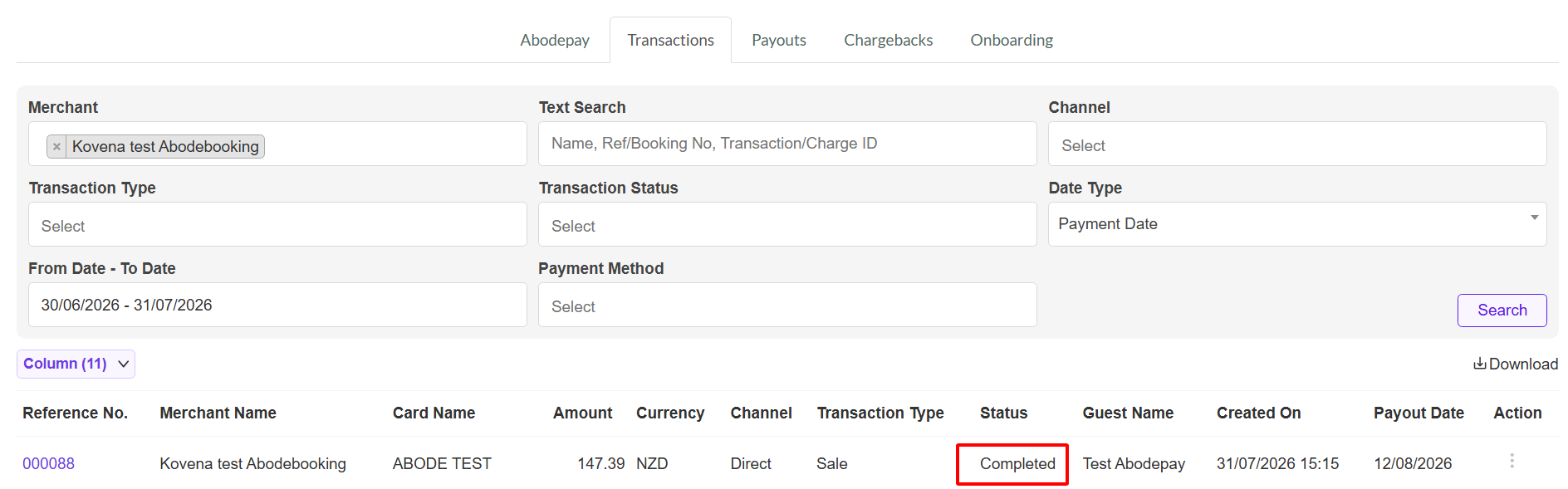
- If successful, you will return to the booking page and the balance will show as paid. You can verify the transaction by going to the Transactions tab, where it will appear with a "Completed" status.
- If there is an error, the section will display in red with the decline reason (e.g., "Insufficient funds").
Note: Virtual Credit Cards
Virtual credit cards issued by OTAs (such as Booking.com or Expedia) are prepaid, one-time-use cards, so no surcharge can be applied to them, the system will automatically default the surcharge to zero. If a virtual credit card is declined, simply request a new card from the OTA.