
This article applies only to customers using the AbodePay payment solution. If you are using a different payment provider, some steps or settings described here may not apply to your account.
The Transactions tab shows every AbodePay transaction — including accepted, declined, and refunded transactions. Navigate to it by clicking Transactions in the AbodePay navigation bar.
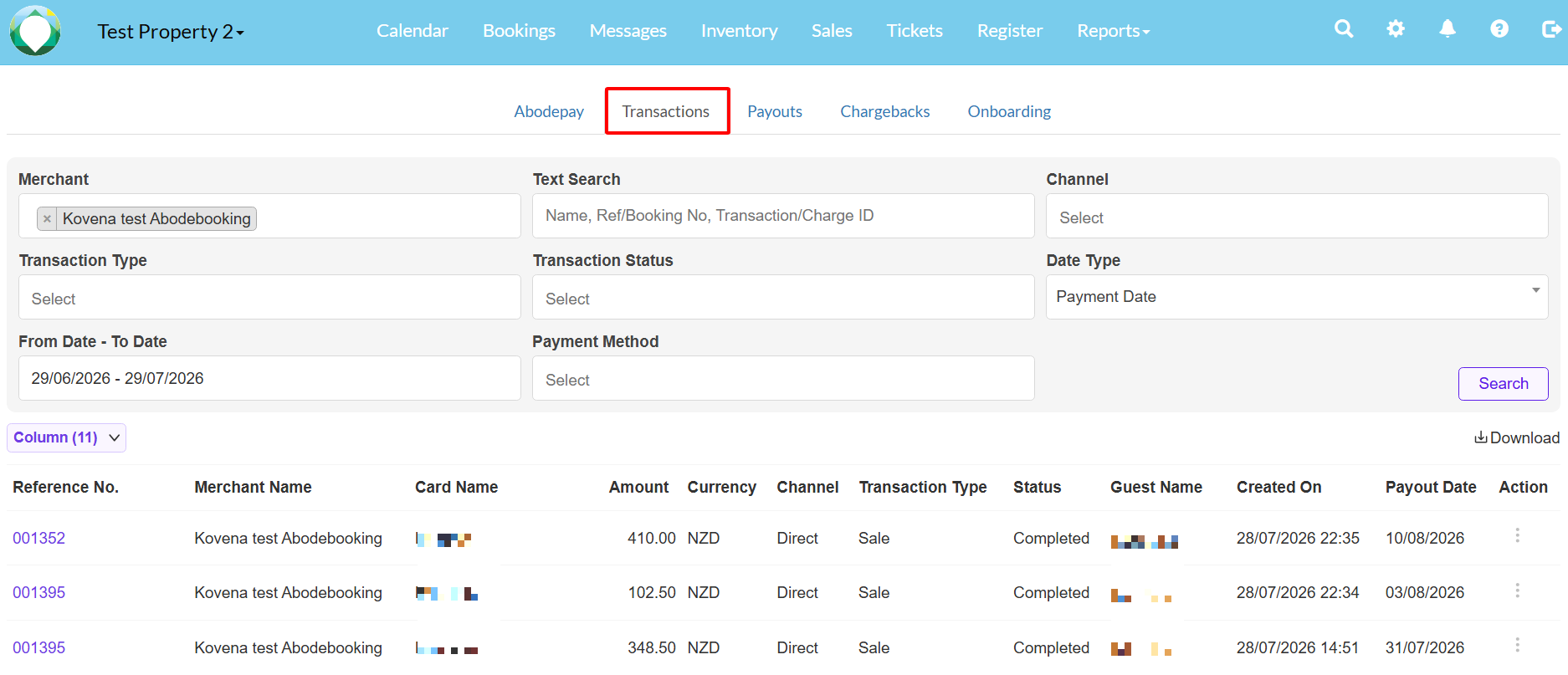
You can filter and search transactions using the following criteria:
- Text Search : Search by customer name, reference number, booking number, transaction ID, or charge ID.
- Channel: Filter by Direct, Sync, Terminal, Virtual Terminal, or Hosted Payment.
- Transaction Type: Sale, Refund, Pre-authorisation, or Capture.
- Transaction Status: Completed, Failed, Pending, etc.
- Date Range: Set a custom date range.
- Payment Method: Filter by specific payment method.
You can also download your transactions as a CSV file by clicking the Download button.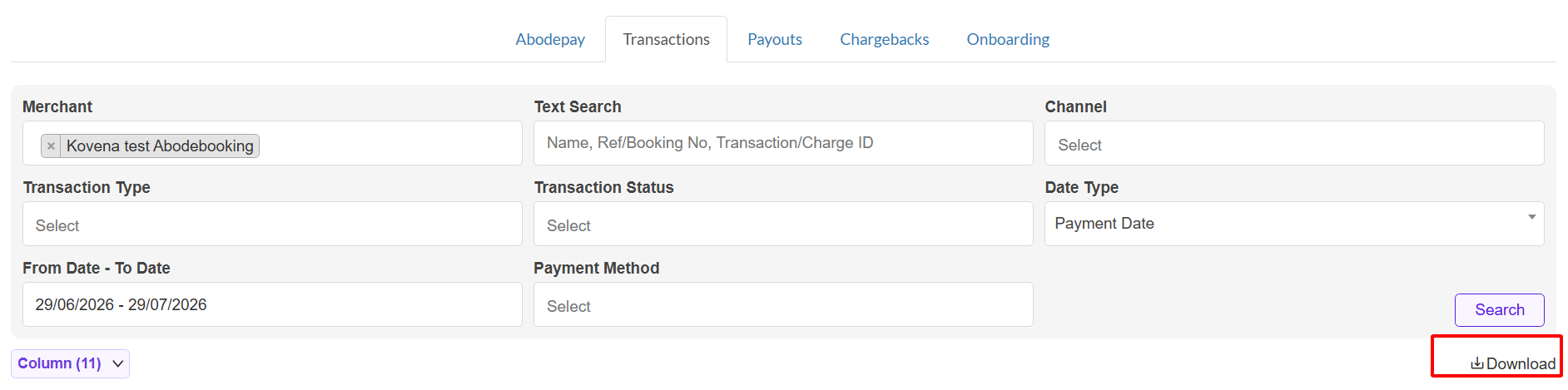
How to View Failed Transaction Details
For declined or failed transactions, click on the reference number to see additional details, including: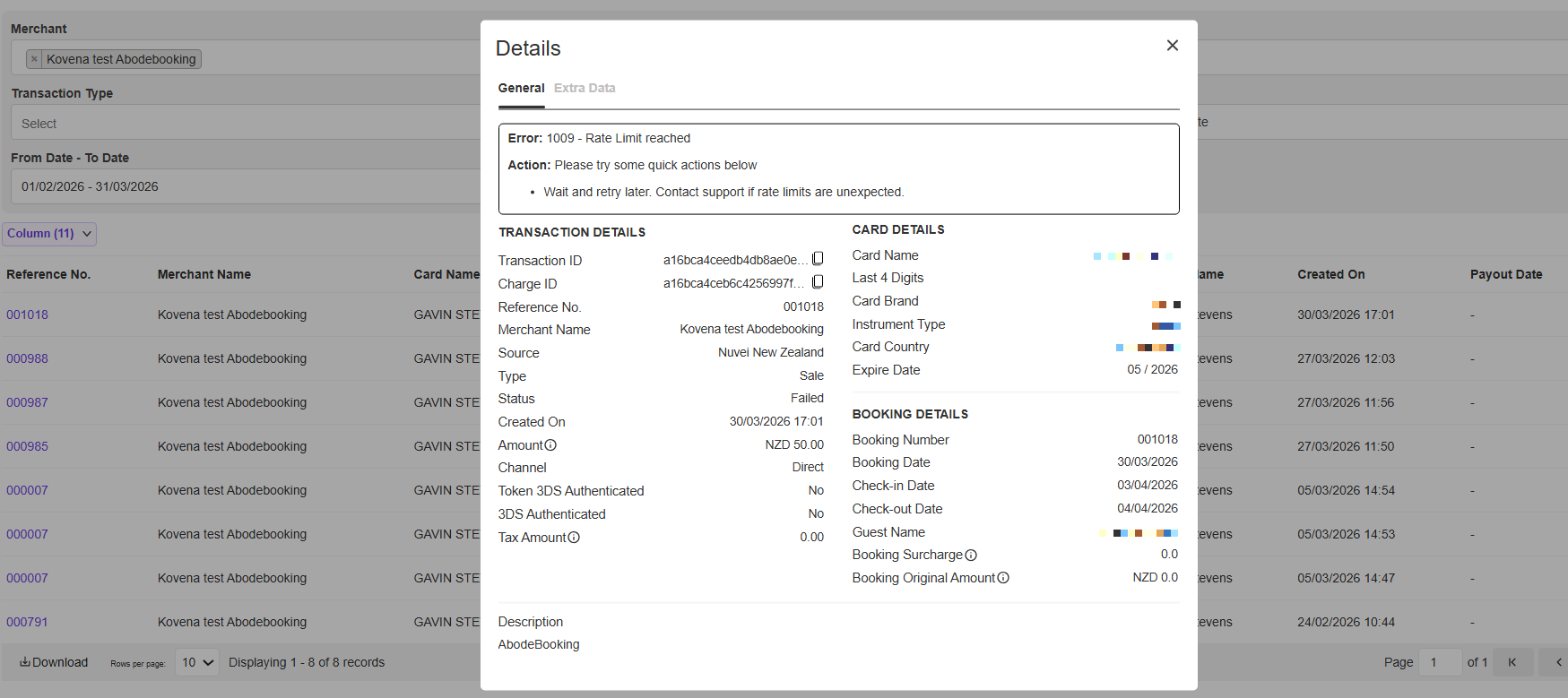
- Error code and reason (e.g., "Insufficient Funds", "Blocked Card", "3D Secure not successful",...)
- Card details (masked card number, card type, expiry)
- Booking information