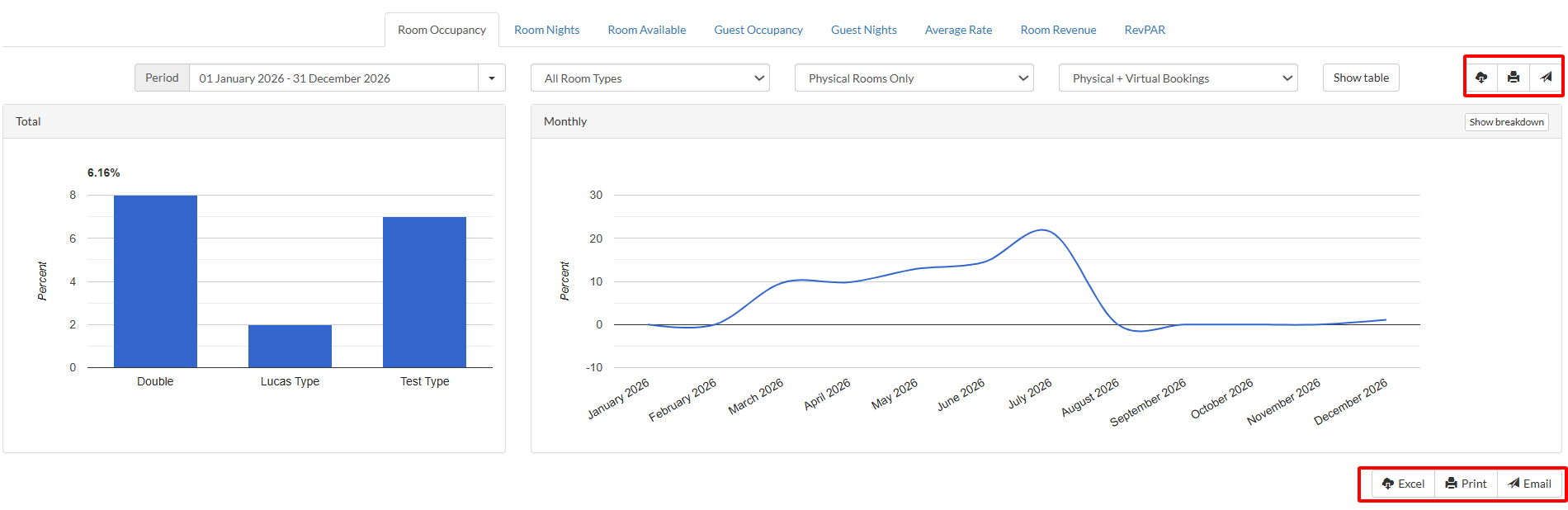
The "Room Occupancy" shows you the occupancy of each room/bed to a given period of time under certain circumstance and certain filters.
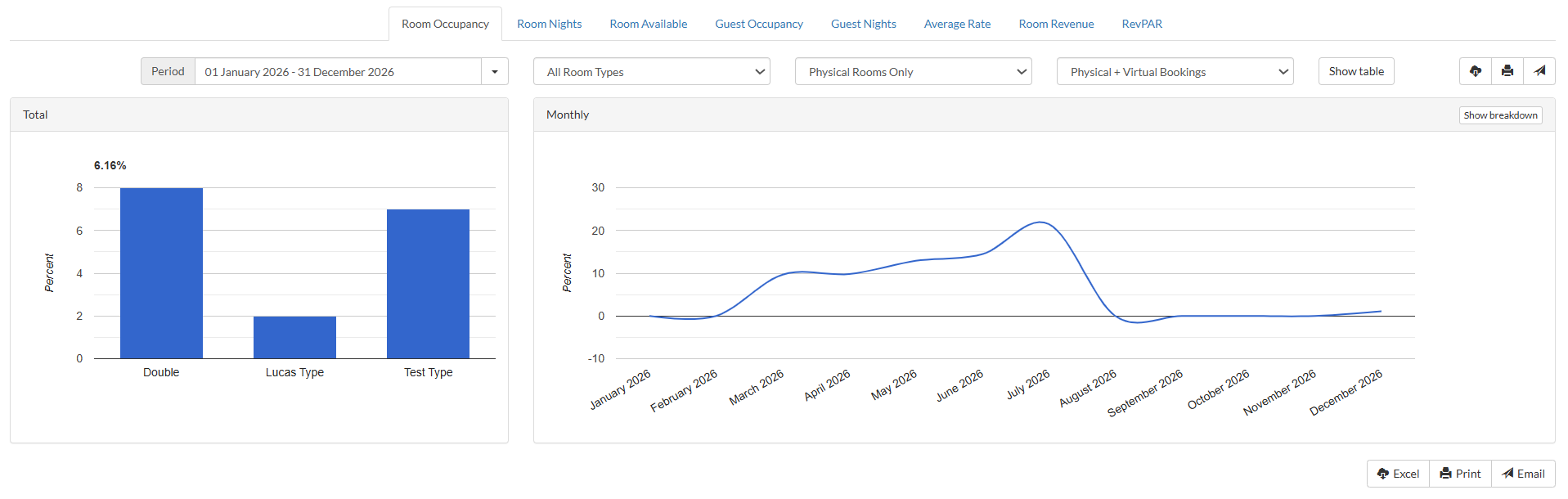
1. To see the "Guest Count" report, navigate to Reports > Room Occupancy.
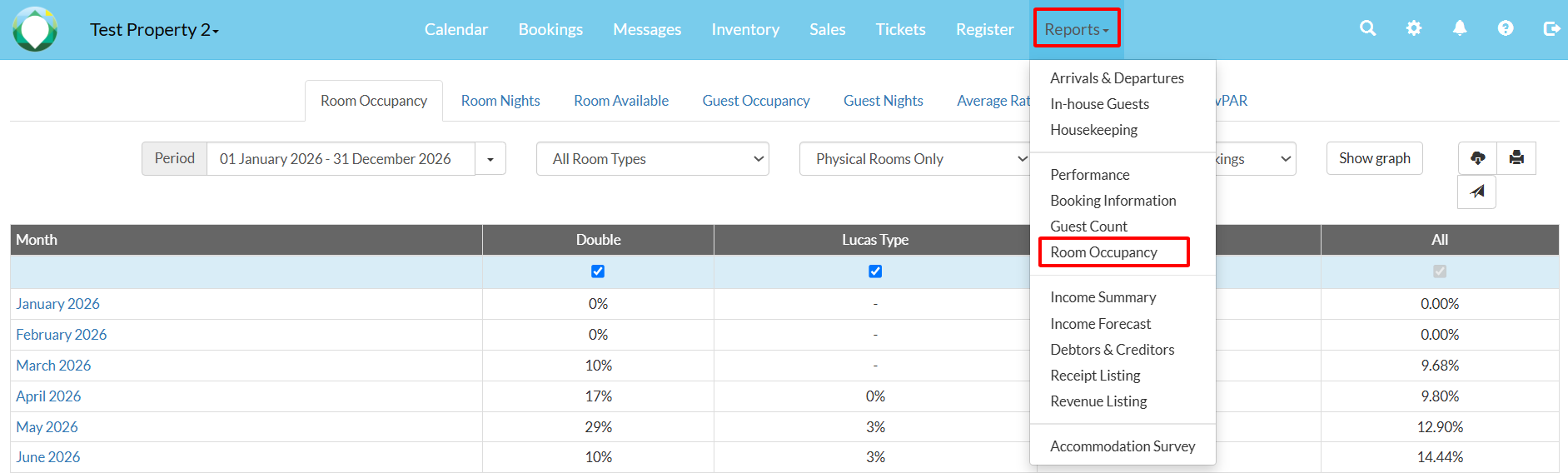
2. At the top, select the specific report you would like to see:
- Room Occupancy
- Room Nights
- Room Available
- Guest Occupancy
- Guest Nights
- Average Rate
- Room Revenue
- RevPAR (Revenue per available room)

3. Select the period of time you would like the report to be displayed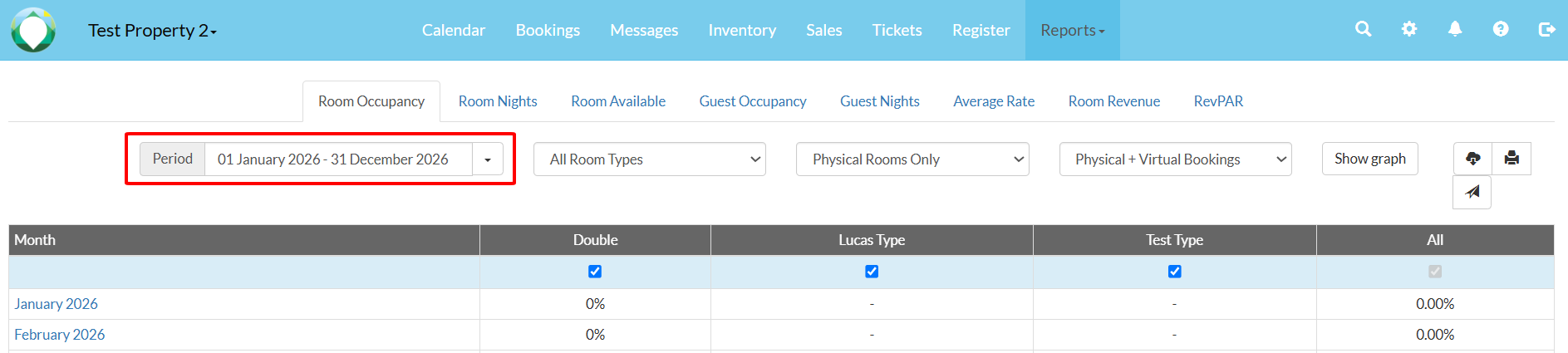
4. Select the filters in the dropdown if you would like to only show certain room types:
- All room types or one specific room type
- Physical or virtual rooms
- Physical or virtual bookings

5. You can choose to view the report in graph or table format, depending on your preference.
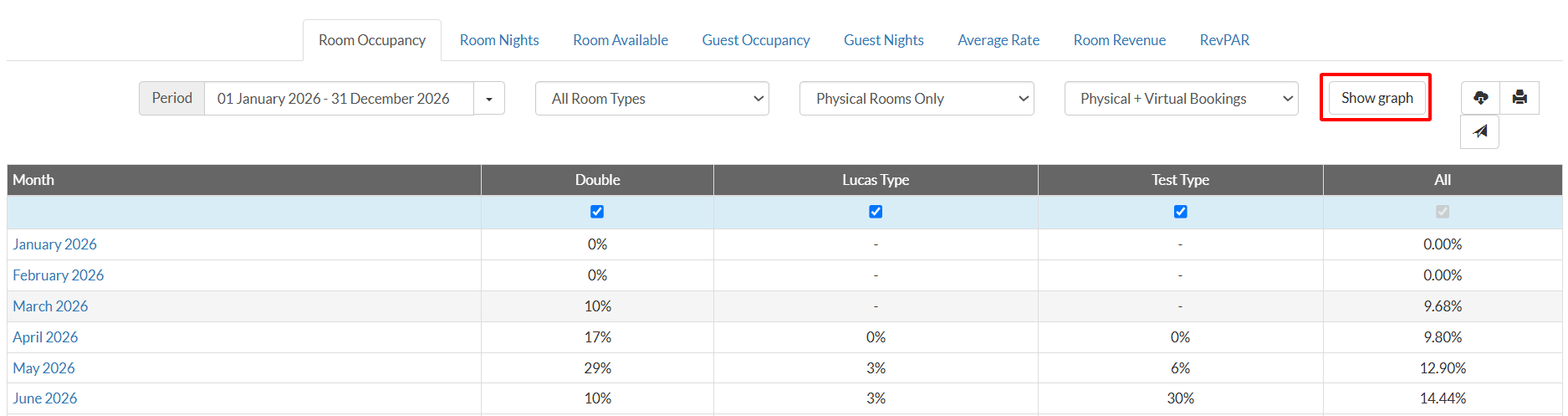
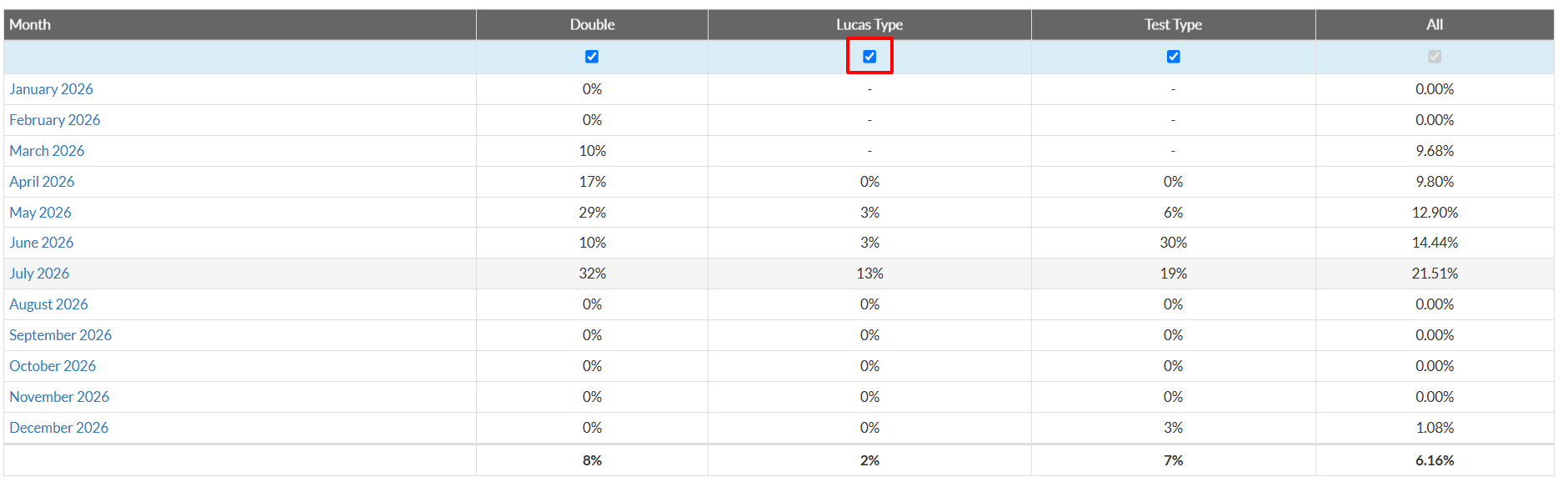
6. You can also remove a specific room from the table. Just uncheck the room in the top bar of the table you don't want to display any more:
7. To export the guest information in an Excel file, print the list or send it as an email, use one of the corresponding buttons below the table.