
In AbodeBooking, you can set up different kind of emails such as confirmation, reminder, cancellation or check-out emails, to give your customers the right information at the right time. The system even allows sending emails automatically on specific days before or after the guest's arrival.
To set up your email templates, please follow the steps below:
- Go to Settings > Messaging > Templates
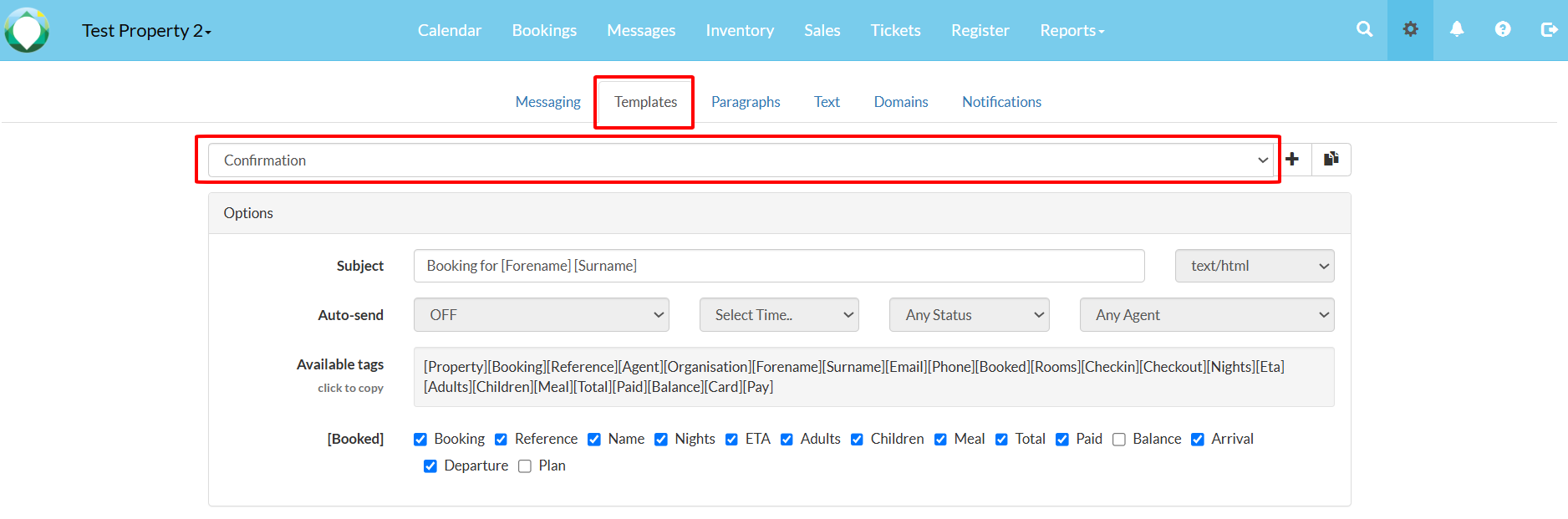
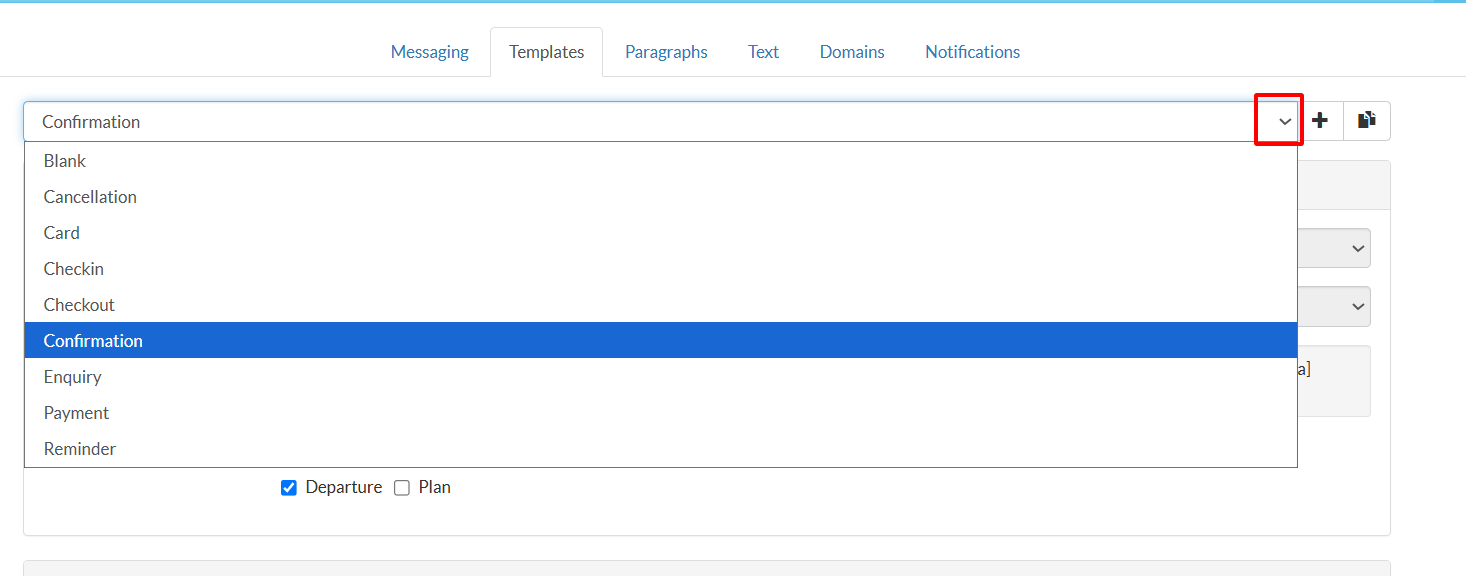
- The "Confirmation" template is selected by default. Click on the dropdown on the right to choose another template.
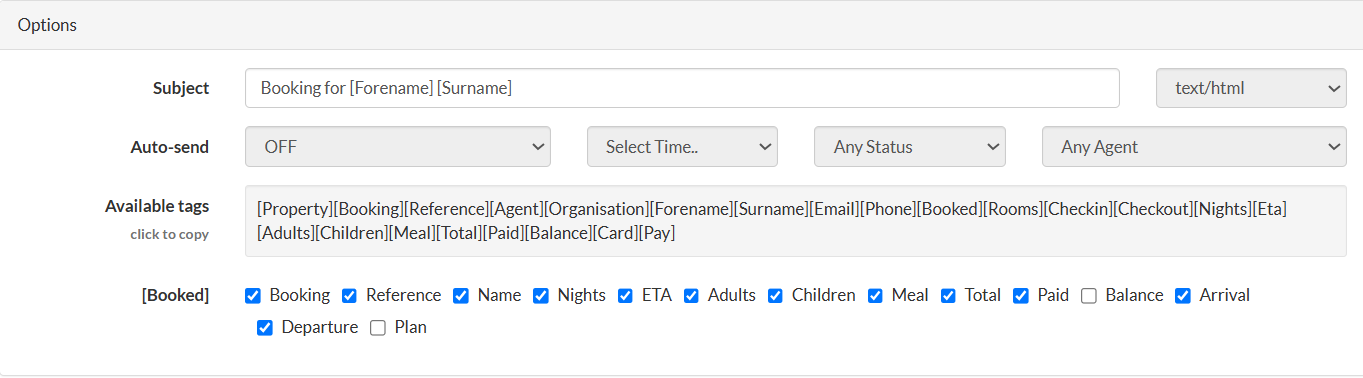
- In the Options section, you can define the subject and set up an Auto-send. In this example, the subject of the email dynamically displays the forename and surname of the customer.
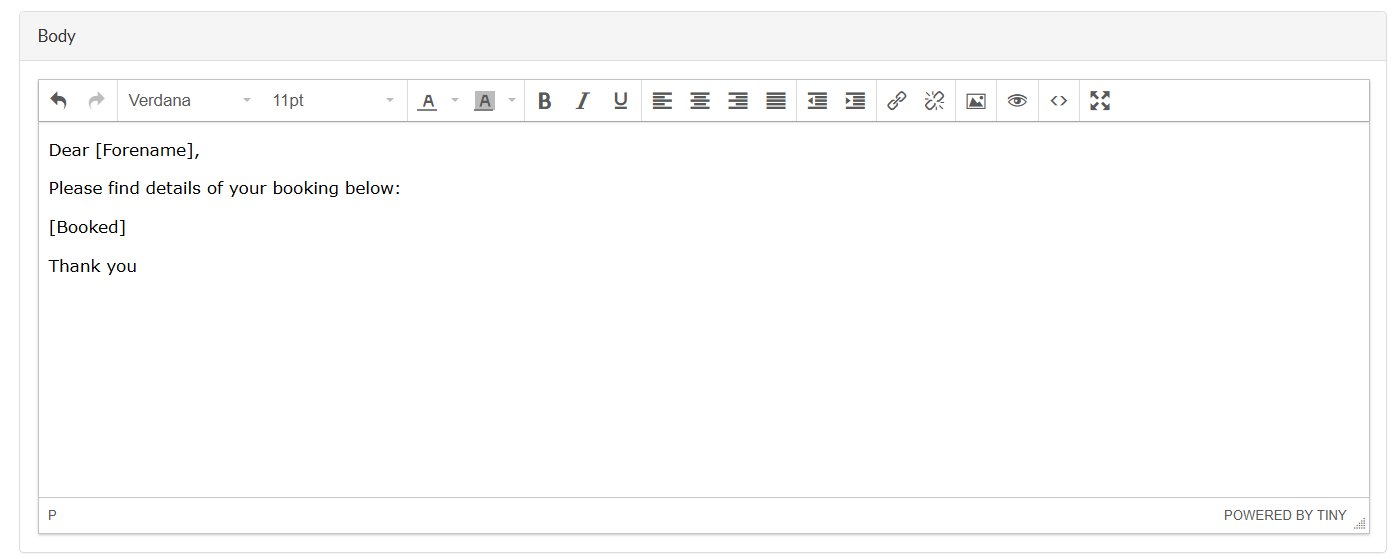
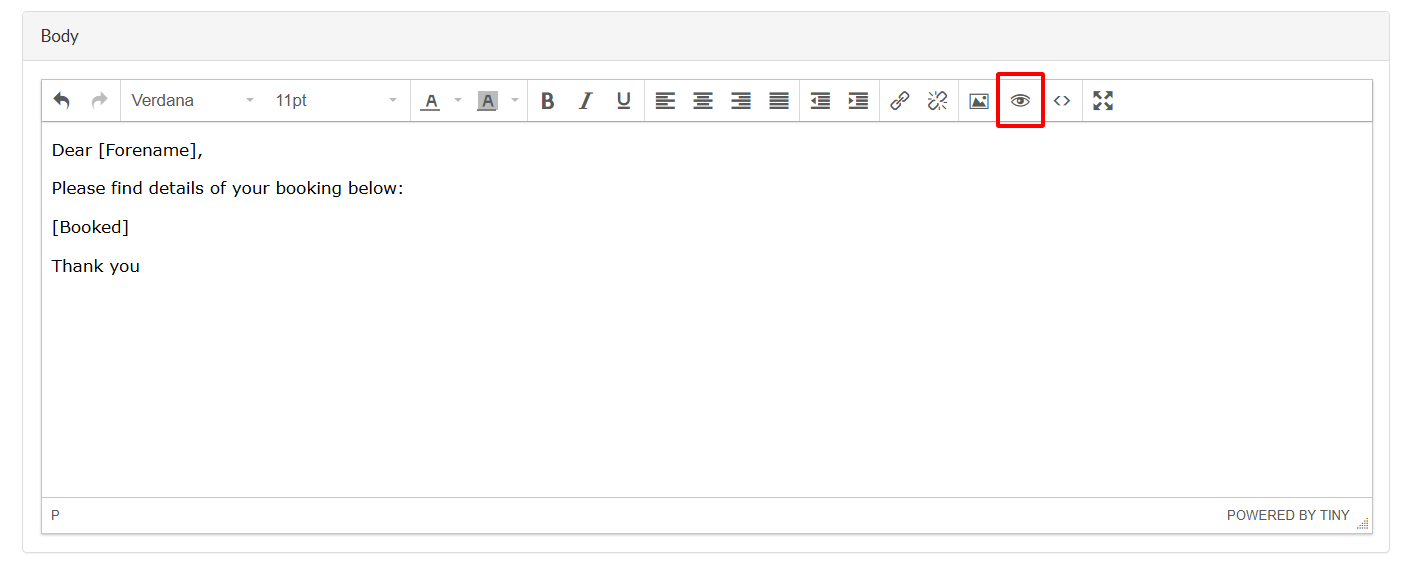
- In the Body section, you can compose the email you would like to send to your customers, making use of the available tags to personalize the content.
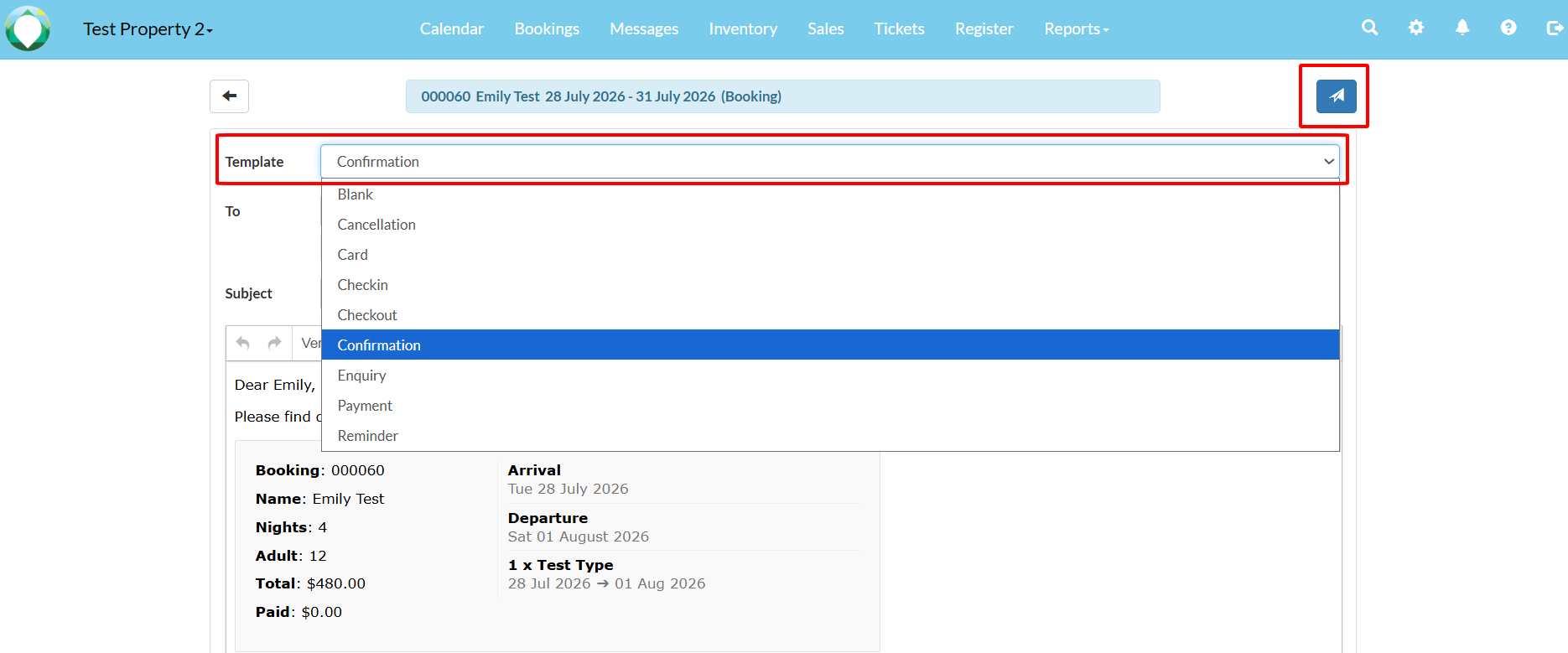
- To preview how an email looks before sending, select any booking from your calendar. On the detailed booking page, click the email button located either on the top right or bottom right. Alternatively, you can simply click the "Preview" icon to preview directly from the email templates.
- This will open the email page. Select the template you would like to preview and it will be displayed below.
Besides, AbodePMS allows you to create custom paragraphs of text that can be linked to specific price types in your system. This means, for example, that reminder emails can be sent with different check-in information depending on the type booked.
For further reference, please refer to the article below for a better understanding of how this works: How do I create email templates for specific prices/types?