(If adding a user to access multiple property accounts, enter the same email address as a user in each system. The user can then switch between accounts by selecting the property name in the top left.)
What are the available user permission types?
The system offers several permission types that can be assigned to users, each granting access to specific areas or functions:
- Admin: Specifically for managing users and permissions.
- Report, Setup, and Register: Each gives access to its respective specific area.
- Card: Allows viewing of raw credit card (CC) details. To have this permission, the user must also have 2FA (Two-Factor Authentication) enabled.
- Calendar Only: Only allows access to the calendar display.
- Read Only: Similar to Calendar Only but provides more information. However, users cannot make updates.
Note: All the permissions listed above are additional/optional. If a user only needs to manage bookings, no additional ticks/permissions are required.
- Select Settings > Users > User Permissions. You must have 'admin' permissions to see this menu.
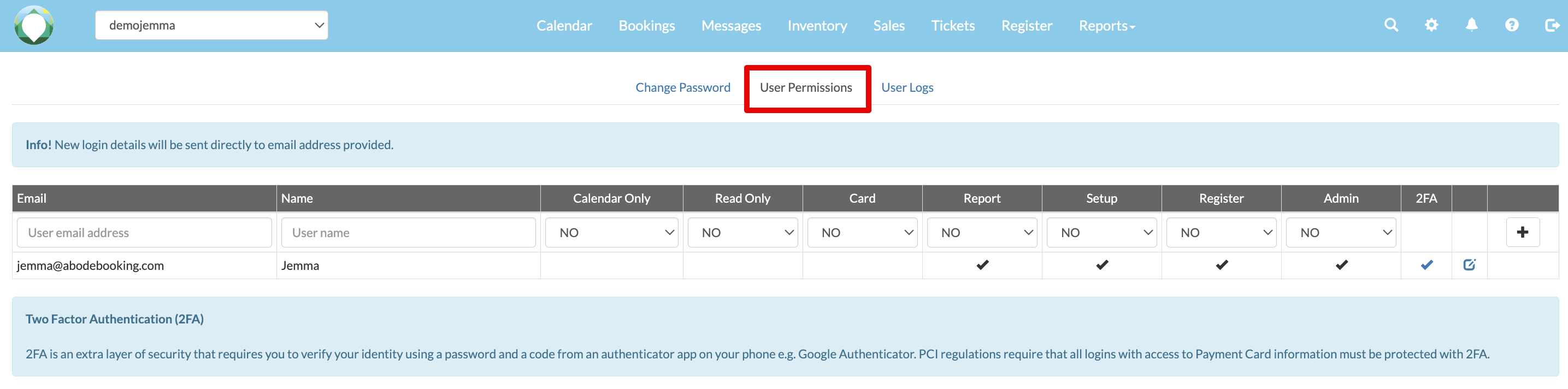
- Enter the users email address and name. Note the email address must belong to the individual, as this is where their password will be sent - use a personal address if necessary.
- Select the appropriate restrictions for the user: Do you want the system to be read only? Do you want the user to view guest card details? Do you want the user to view reports? Do you want the user to be able to make setup changes? Do you want the user to be able to use the Till/Register?
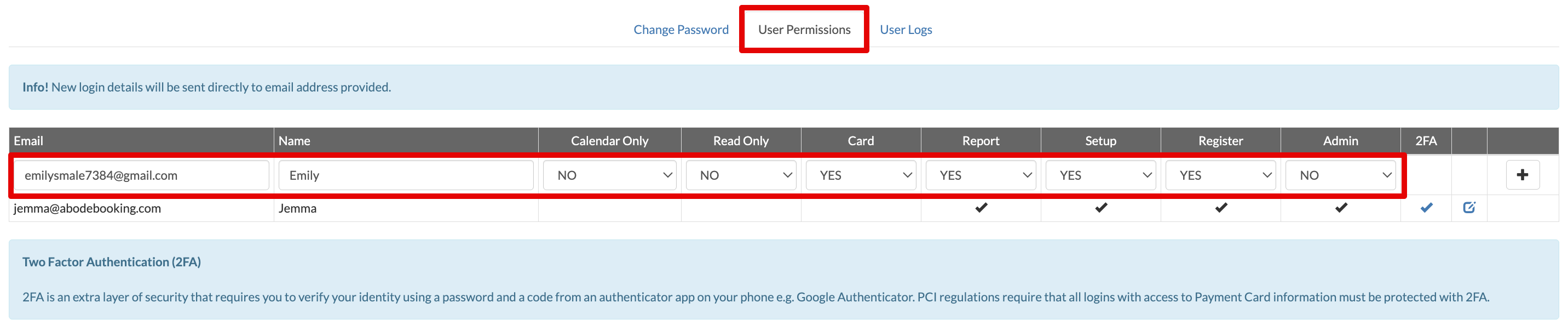
- If the user requires access to guest card numbers, they must have 2FA enabled. (2FA is automatically added for any users with card access).
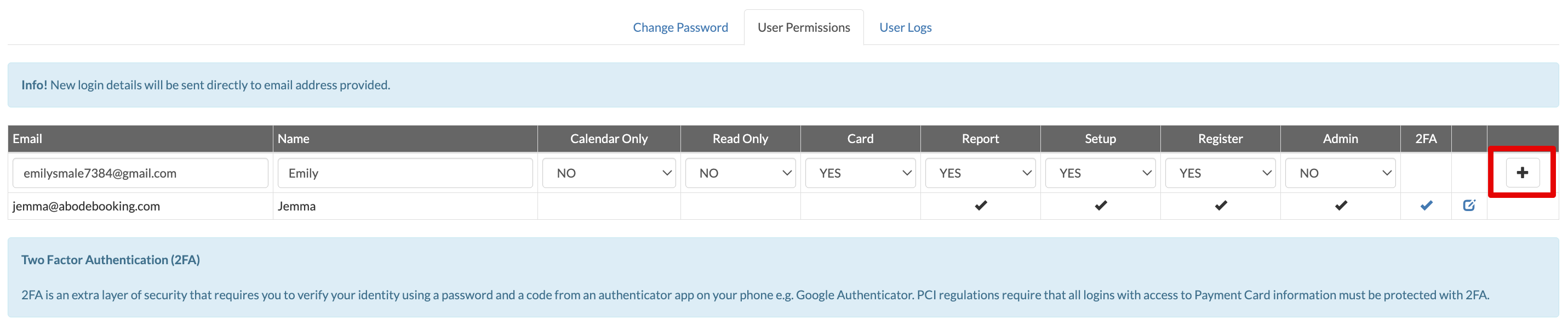
- Select the 'Add' button at the end of the row. An automatically generated password will be sent to their email address. They can use this to log in and then choose their own password using the Change Password tab.
- If a user has card access enabled, they will be prompted to set up 2FA on login. A QR code will be displayed for the user to scan with their mobile phone to add Abode to their authenticator app. Find more instructions for using 2FA here - How do I set up 2 Factor Authentication?
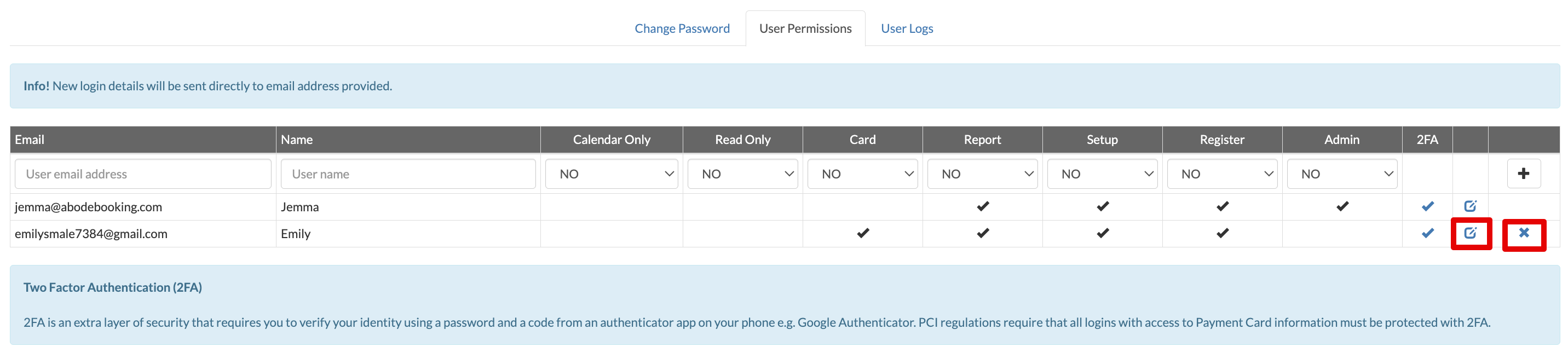
- To edit permissions of a user, or to remove their login, the admin user must select Settings > Users > User Permissions and either select the Edit or Delete button.