
This guide is for customers with an 'Abode Connect' account and Channex channel manager enabled. If you're not sure, please contact support@abodebooking.com.
Note: Please ensure any unused room types in Agoda have been removed before connecting. If any types cannot be removed because of forward bookings, ensure to apply a stop-sell after connection.
I. How to connect to Channex
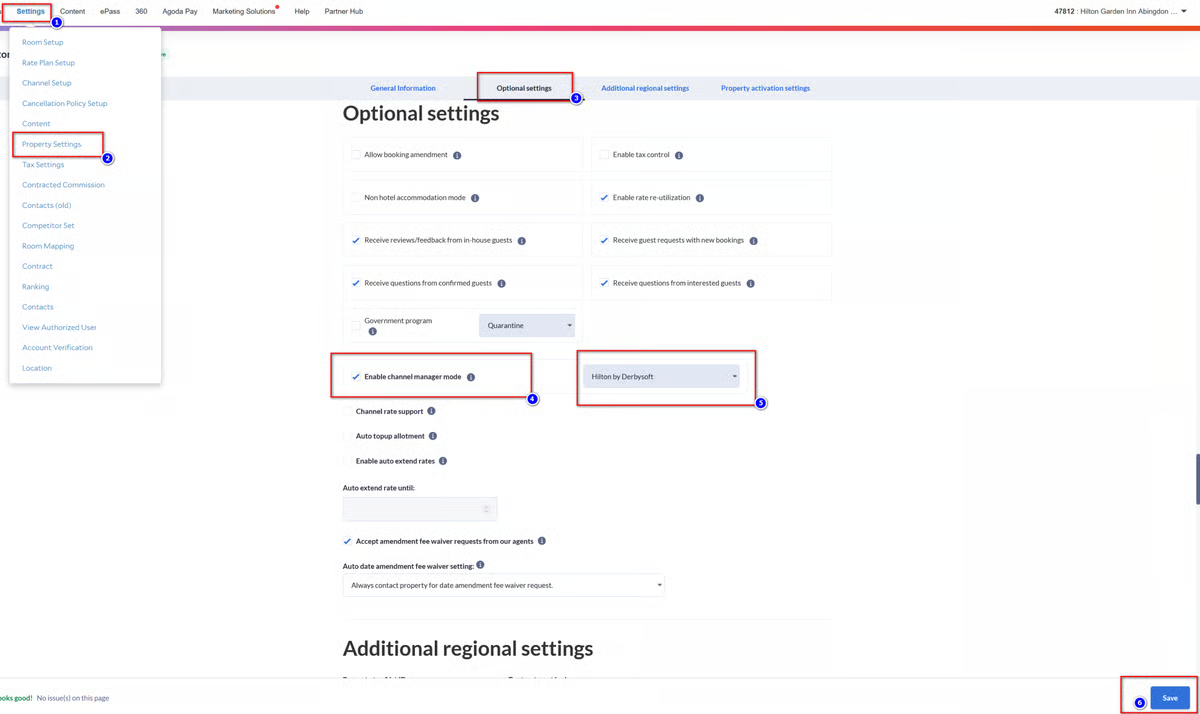
- Go to YCS > Settings > Property Settings.
- Click Optional Settings.
- Tick or untick enable channel manager mode box to add or remove channel manager.
- Select Channex from the drop-down box.
- Click Save.
II. Create the Agoda Channel
- In your Abode system, select Settings > Channex > Channels
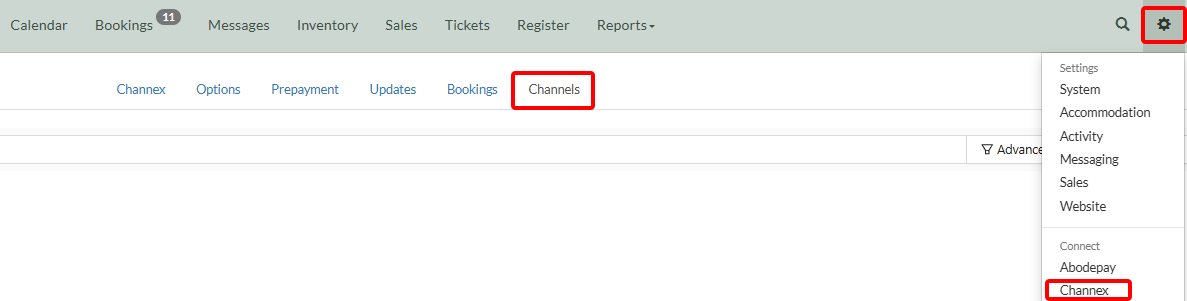
- Select Create to create a new channel connection.

- Select Agoda channel and fill in all required information
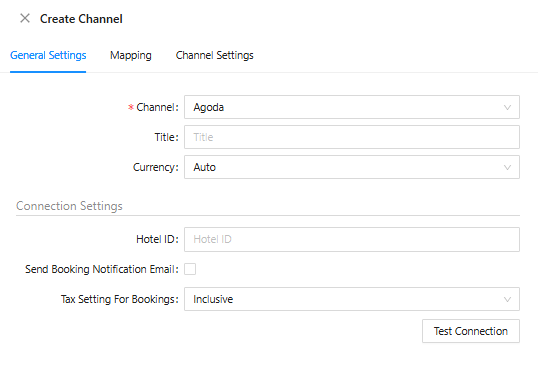
- Title: Enter your admin username in the title field
- HotelID: This will be the Agoda Hotel ID
- Send Booking Notification Email: This is optional if you would like Channex to send an email after a booking (New, Modification and Cancellation)
- Tax Setting For Bookings: Choose here if you want total with taxes or without.
- Inclusive: Booking with taxes included in the nightly price but less commission (Payout amount)
- Inclusive with Commissions: Booking with taxes and commission included in the nightly price (Total Amount)
- Exclusive: Booking without tax or commissions (USA Model)
- Test Connection: This button will check if we have access to that property in Agoda, if there is an error please check your property ID. You might need to ask Agoda support to check if Channex is connected.
III. Mapping
- Click the Mapping tab if the test button is a success, this will bring up mapping table.
- Select to match the types in the Agoda column with the types in the Channel Manager column and select Save once complete.
- Save the channel.
- Once the channel is saved, select Actions to Activate the channel.
- Check the inventory and rates are correct in your Agoda channel.
How do I find the Agoda details that are needed to correctly map my channel manager?
In order to map your channel manager, you will need the Agoda Property ID, Room Type IDs, and Rate Plan IDs. Refer to the steps below for how to locate them on YCS.
1. Finding your property ID: Your property ID is displayed alongside your property name throughout Partner Portal, such as at the top of each page or on Listings.
2. Finding your room type IDs
- Sign in to YCS. If you manage multiple properties, select it from Listings.
- Go to Property > Room setup.
- The ID for each room type is displayed in the first column.
- To download your room type IDs, tick the box to select the room types you need, then click Export items to .xlsx.
3. Finding your rate plan IDs
- Sign in to YCS. If you manage multiple properties, select it from Listings.
- Go to Rates and availability > Rate plans.
- The ID for each rate plan is displayed in the first column.
- To download your rate plan IDs, tick the box to select the rate plans you need, then click Export items to .xlsx.
Once you have selected your channel manager in YCS and collected the required IDs for mapping, you are ready to contact your channel manager to complete the connection.